Your property collection, inside your existing website.
Add branded property search and detail pages to a site you already own. Manage your listings in Show Front and display the collection through an embed.
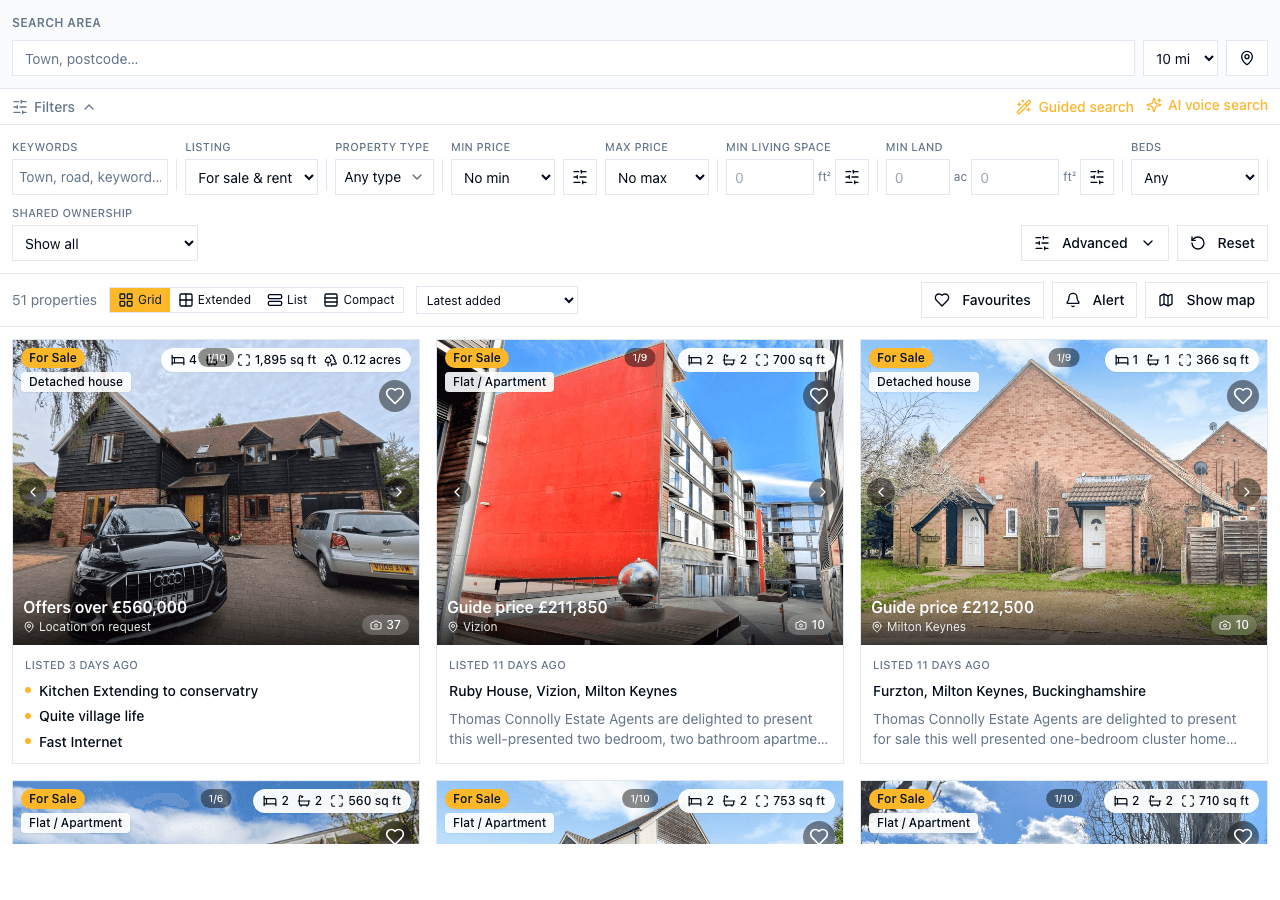
Update a listing. Keep the collection current.
Step 1
Create a collection
Choose the properties for an area, development or your agency’s full portfolio. Apply your branding.
Step 2
Add the embed
Your website editor or developer adds the iframe snippet to the page where you want property search.
Step 3
Manage in Show Front
Edit details and publication status in the workspace. The embedded collection reads the current listings.
Check the fit with your website.
Your website must allow an HTTPS iframe and provide enough space for the collection. Your website supplier may need to adjust content security settings, page width or frame height.
Bring your website address and platform to the demo. We can discuss the installation with you or your developer.
Try the property search demoWhat happens to enquiries?
Questions and viewing requests made through the collection reach your Show Front workspace against the relevant property.
What about my existing CRM?
Show Front manages the listings displayed in the embed. Bring details of your current CRM and export format so we can confirm an import or integration approach before you commit.
Understand how property pages appear in search.
Public property detail pages currently use canonical URLs on Show Front. Embedded search pages are excluded from indexing. Keep useful agency and service content on your own website and discuss your property-page SEO requirements during setup.
For a wider website project, explore our managed agency website option. Discuss your requirements through the setup enquiry page.
See a collection inside an agency website.
Our fictional Field & Home example combines agency service content with the working Show Front collection. It demonstrates the host page and buyer journey; it is not a customer case study.
Open the agency website exampleInstallation and launch checklist
- Publish a collection in the agency workspace and copy its embed snippet.
- Add the snippet to an HTML block on your website. Allow frames from https://showfront.app in your site’s security settings.
- Give the frame the full content width and test its height on a phone. The embed tools provide sizing options.
- Test filters, a property page, navigation and a controlled enquiry before launch.
A minimal sample frame is shown below. Use your own published collection URL in production.
<iframe src="https://showfront.app/embed/a/demo-estate-agent-area" title="Property search" width="100%" height="800" style="border:0"></iframe>Will it automatically sync with my CRM?
The embed reads properties managed in Show Front. An iframe does not create a CRM connection. Import formats, field mapping, media rights and any ongoing synchronisation must be assessed for your current system. The workspace supports property exports in JSON, CSV and ZIP; these are export tools, not a promise of compatibility with every import source.
Read the product guidesLet’s see how it fits your agency.
Tell us about your properties, website and current software. We’ll walk through the product and discuss getting started.